VideofuseAI Video Privacy
Local AI · Batch Processing · Data On Device

AI Auto-Detection
Smart Tracking · One-Click Desensitize

Faces, phones, QR codes, ID numbers — five-dimension local AI detection, masks track frame-by-frame; 18 blur effects including AI smart repair, batch H.264 near-lossless export — data never leaves your device.

Local AI Powered
Batch Processing
Data On Device
AI Detection Running
Videofuse Studio v1.0
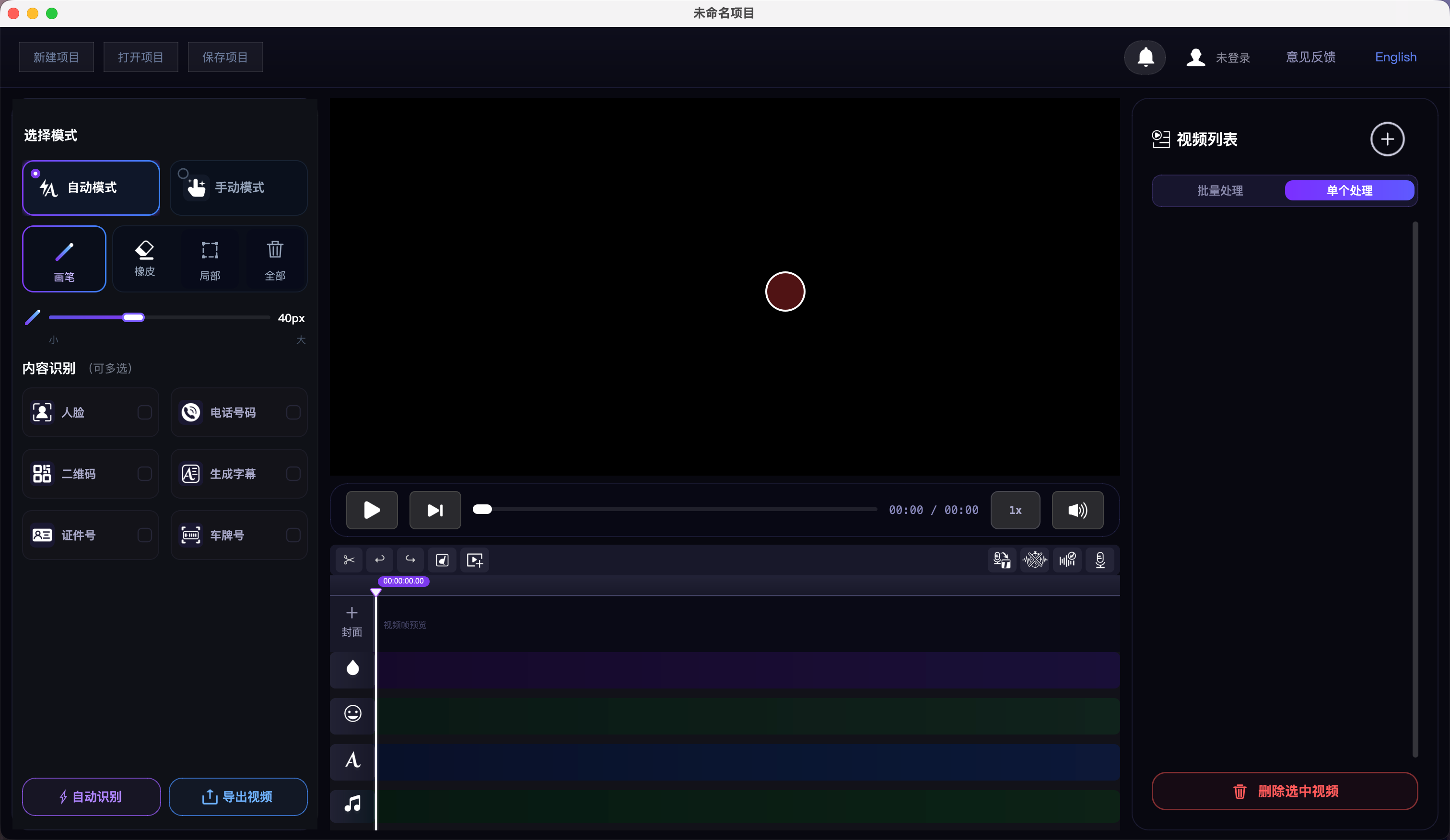
Videofuse software interface
GPU
Apple Silicon · 98%
Local AI Engine
Face Track100%
Speech to Text87%
Batch Export34%
Local · Zero Upload
Quick Start

Import · Mark · Export — Three Steps

Mark sensitive regions manually or with Auto mode, AI detects and tracks masks, batch export in one click — all local.

01

Import Video

Click Add Video or drag files in for batch import. MP4, MOV, AVI, MKV and more.

02

Mark Regions

Brush, rectangle or circle tools — or Auto mode for AI face, phone number, QR and ID detection with frame tracking and erase fine-tuning.

03

Batch Export

Click Start Processing — all videos process sequentially to the source directory, H.264 CRF 17 near-lossless, with a _no_sub filename suffix.

Core Capabilities

Pro Pipeline from Detection to Export

18 blur effects, 5-dimension AI detection, smart tracking, 16 subtitle presets, speech-to-text and sensitive-word muting — a complete local video privacy workstation.

18 Blur Effects · AI Smart Repair

AI smart repair, content-aware fill, mosaic, Gaussian, mean blur and more; strength 0–100. Right-click the blur track to batch-set effects or clear all blur. For motion, enable Settings → High-quality repair (temporal).

5-Dimension AI Auto-Detect

Face, phone (130+ formats), QR, ID, speech subtitles — select types, one-click detect (cancellable). Batch scan current or all videos; desensitization report pops up with CSV export.

Mask Drawing · Fine Editing

Brush, rectangle, circle, eraser and Auto mode; click empty timeline to create clips, playhead-centered scroll, edge snap to playhead; clear region on selected blur layer.

CSRT / KCF Smart Tracking

Right-click a clip to enable tracking: CSRT for precision, KCF for speed. Masks and stickers follow targets; re-track when the tracked range changes.

16 Subtitle Style Presets

Film, short video, news, gaming and more — stroke gradients, glow, shadow, backgrounds and in/out animations. Right-click a subtitle segment to style; apply to all subtitles.

Speech-to-Text · Word Filter

Local AI transcription with timestamps, double-click to edit. Optional sensitive-word filter and beep + mute at exact moments. Models download once, then fully offline.

Recording · Built-in Teleprompter

Record voice-over with gain 0–200%; built-in teleprompter with font/speed, txt/md import, mirror and fullscreen. Import audio with independent volume and preview play.

One-Click Word Muting

Settings → Sensitive words: app-wide library with txt/csv import/export. One-click locate spoken sensitive words and beep + mute precisely — all local.

Stickers & Text Overlay

Built-in emoji or import PNG/JPG/GIF/SVG with scale/rotate; GIFs sync frame-by-frame on export. System fonts, double-click to edit; text always renders above blur layers.

Batch Export · Presets

Batch or single export. H.264/H.265 up to 8K, GPU/CPU auto-scheduling; codec, quality, resolution, frame-rate cap and bitrate (incl. ABR) presets persist.

Dynamic Stylization · Projects

Per-video randomized blur, crop, color, speed and shake — fixed seed for reproducibility. .moying saves full edit state; Logs (top-right) filters local actions and errors.

Local AI · Data On Device

All models run locally — audio and video never leave the device. Speech model (~250 MB) downloads once, then offline; low RAM triggers automatic CPU fallback.

AI Engine

Local AI Pipeline · Detect to Export

Not a cloud API — complete local pipeline: 5-dimension detection, cross-frame tracking, blur desensitization, subtitles and batch export with CSV desensitization reports.

Neural Processing Unit
Video Frames
Audio Track
Metadata
GPU Core
Face
Phone
QR Code
ID Number
Subtitles
01

Import

Batch · multi-format

02

AI Detect

5-dim · cancellable

03

Track · Edit

Mask · sub · audio

04

Batch Export

H.264 near-lossless

5-Dimension Parallel

Models run in parallel — one failure won't block the batch; desensitization summary report + CSV export after each run.

5 Dim

Cross-Frame Tracking

CSRT/KCF dual-engine — masks and stickers follow targets stably; re-lock when range changes.

60 FPS

18 Blur Effects

From AI smart repair to motion blur — batch manage blur tracks, unified strength and type.

18 FX

Fully Offline

Models cache locally after first download — zero upload throughout detection and export.

0 Upload
Why Local

Local AI vs Cloud Blur Tools

Most online blur tools upload your video to a server. Videofuse detects and desensitizes on your device — the privacy difference is clear.

ComparisonVideofuse (Local AI)Cloud blur tools
Upload video to serverNo — fully localYes — cloud upload
Works offlineYes (after model download)Requires network
Privacy & compliance riskLowest — data stays on deviceDepends on third-party policy
How to get startedFree downloadOften capped or watermarked
Pro batch workflowBatch import/export · timelineMostly single-clip / light edit
Detection coverageFace / phone / QR / ID / subtitlesVaries by product

Comparison reflects product positioning; check each product’s current version for details.

Live Demo

See AI detect & blur — no download required

Pick a sample frame and watch local-style AI detection and masking. Real video processing happens only after you install the app; this site never uploads your files.

Zero upload · simulated local pipeline
Ready0%

Demo uses preset sample images. Download the app for full 5-D detection and batch export.

Results

Before / After · See for Yourself

Drag the slider to witness desensitization before and after — on the third tab, compare audio-only footage with cinematic subtitle transcription.

BEFORE
AFTER
0%

Detection Accuracy

0

Blur Effects

0%

Privacy Protection

System Requirements

Local AI Processing — Confirm Your Hardware

AI models run locally. Apple Silicon (M1/M2/M3/M4) excels at content-aware repair and speech-to-text; Windows with a discrete GPU delivers significant speed gains. Low RAM triggers automatic CPU fallback — slower speeds are normal.

macOS (Apple Silicon)

MinimumRecommended
OSmacOS 12 MontereymacOS 14 Sonoma+
ChipApple M1M2 / M3 / M4
RAM8 GB16 GB+
Storage5 GB20 GB+

Windows

MinimumRecommended
OSWin 10 64-bit 1903+Windows 11 64-bit
CPUi5 / Ryzen 5 quad-corei7 / Ryzen 7 8-core+
RAM16 GB32 GB+
GPU (optional)Not requiredNVIDIA GTX 1060 / RTX
Storage5 GB20 GB+

Disk Space

Check free disk space before installing to avoid mid-process interruptions from insufficient cache.

App install
~2 GB

Space required to install and run the app

AI models
~250 MB

Speech-to-text small model; downloaded once on first use, then offline

Processing cache
10 GB+ recommended

Reserve free space for video processing and export cache

Begin Your Journey

AI Auto-Detection
Smart Tracking · One-Click Desensitize

Download Videofuse — all processing stays local; your data stays yours. Faces, phones, QR codes, IDs and subtitles — five-dimension detection and batch desensitization in one workflow.

macOS

Apple Silicon native

Windows

NVIDIA CUDA acceleration

System Requirements

macOS 12+ (Apple Silicon) / Windows 10+ · Local GPU/CPU acceleration